Showing posts with label Windows XP. Show all posts

Wednesday, January 25, 2012

Disable Registry Editing Restriction


When you are on someone's PC or on your friends PC you try to frustrate your friend by doing something in registry and you have also done sometimes but if your friend or the owner of that machine is bit wise, then when you try to open registry a pop up message opens saying that "Registry Editing has been disabled by your  administrator". Now what you will do. Here is a trick to open that lock.

Friday, December 23, 2011

Hide files behind Images


Now you can hide your private files behind images and stay secure from your friends or childrens. This is just a tweak using Command Prompt in Windows7, Vista or XP. Just follow the steps and see images.

1. First Create New Folder. In this folder copy one image (.JPG prefered) behind which you want to hide files.

Wednesday, December 21, 2011

Remove File Assicoation with any Extension


File Association is the utility in windows that keep records that which file extension is ssociated with which program.

You can check file association in Windows7 by going Control Panel > Default Programs and click on 'Associate a file type or protocol with a specific program'.

Tuesday, December 13, 2011

HI ALERT!!! New Trojan Spreading - SPQJSADSLA.EXE Get Details


Friends while i am surfing i got a new alert that my PC is infected. Suddenly one window opens with security shield title and it starts scanning it self, even i am not using any antivirus, or any antimalware.

Than i checked process in task manager and found the process of security shield, the process was xnlroiob.exe, then i try to find on internet but google says no result found.

I doubt that it's not any antivirus, surely it's a fake warning and virus or trojan or malware.

I think and again checked task manager, i found that one java.exe process is also running even i am not using any java application. Then i end the process and i amazed that, that security shield application was stopped working and i am not getting any warning any more.

After Search i found that this is a Trojan and giving fake warning to victims and running on java.

Then i started CProcess utility (from http://www.nirsoft.net/) and find the location of that fu*ky trojan. It was in my "C:\Users\Technoknol\AppData\Local\xnlroiob.exe". I tried to delete but when i close and reopen that location, it was there.

So, Beware friends it's the alert because i have faced the problem and i know how it's danger. Don't worry it's solution will be published when i win against that fu*ky.

Here below is a some reports and specifications of it. Read it carefully.


Details:
Group : Cloaked Malware

Country of Origin :  South Africa

First Seen on :  Dec 11, 2011

File Names : SPQJSADSLA.EXE, 43627076.EXE, 86145167.DAT, 65257416.EXE, TEST.EXE, xnlroiob.exe

File Size : 365,056 bytes (357 Kilo bytes)

File Type : EXE Executable

Affected Operating Systems : Windows

Friends this is the information i found on internet. Here below is a PREVX and VIRUSTOTAL report click and check it out.


http://www.freezepage.com/1323723846KMUNTLFQDD ( Virus Total Report Freezed Page )


Below is a Screenshots i've captured. If you have seen like this on your computer then you're infected beware when sufing.

1. This Screen in image says that such listed files are suspecious but i have checked but that was never shown as suspecious.


2.This windows says that your Internet Explorer is infected with Trojan Spy, and asking you to activate.
3. Whenever you click on any warning or anywhere it opens full screen window like below image.

 
4.  It opens a window looking as control panel-->Action Center (in Windows7).
5. The main window which first opens on my PC any starts scanning it self.
6. A window which says 9 viruses, 2 adware and 3 spyware detected and asking to remove all threats like any original antivirus.
7. and last a notification warning tells you that Spyware.IEmonster is detected and sending all your passwords.

And at last, have you noticed that, in 4th image close button is disabled when microsoft will never do that (ofcourse not in control panel) and it looks like control panel of windows7 , and in other images windows like Windows XP (I am using Windows7).


Enjoy !!!


Use OpenDNS for Faster and Safer Browsing


With the use of DNS servers you can surf the web sites fast and safely. Here is a tut about how to configure you system to use DNS servers and which is the best.

To get fastest speed with safety just use OpenDNS (www.opendns.com) for your ISP’s DNS servers. OpenDNS has a monster DNS cache, and DNS servers located around the globe, so you may be able to retrieve IP addresses from it more quickly than from the default DNS servers your ISP points to. And, as you’ll see later in this hack, you get all kinds of other benefits, such as automatically fi xing URLs typos for you; for example, type www.yahoo.cmo into your address bar, and you’ll be sent to www.yahoo.com, instead of getting a page error.

You only need to configure your system to use it. The following section will teach you.

Configure OpenDNS in Windows XP
In Windows XP, select Control Panel→Network and Internet Connections→Network Connections,
right-click your network connection from the Network Connections window, and select Properties.
From the network connection dialog box that appears, click Internet Protocol (TCP/IP) and click
Properties. The screen you’ll see will be the same as the in below image.

Select “Use the following DNS server addresses” ( See Figure ). For the Preferred DNS server, enter
this address: 208.67.222.222. For the Alternative DNS server, enter this address: 208.67.220.220. Click OK, and then click Close and Close again. Restart your PC for the settings to take effect.

Configure OpenDNS in Windows Vista
To use OpenDNS servers in Windows Vista, select Control Panel→Network and Internet→Network
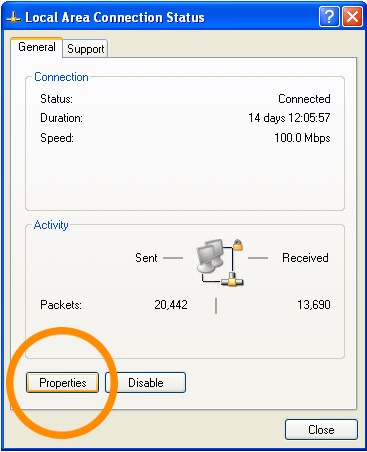
and Sharing Center. Click the View status link on the right side of the screen. The Local Connection
Status screen appears. Click Properties, and the Local Area Connection Properties screen appears.
Highlight Internet Protocol Version 4 (TCP/IP v4), click Properties and follow steps as in Windows XP.

Configure OpenDNS in Windows7
For open DNS in Windows7 goto Control Panel→Network and Internet→Network and Sharing Center.In the right pane 'view your active section' your active connection is there click on your connection name beside 'Connection:'. New window appears showing your connection status in there click on 'Properties' will popups new window. Click on Networking tab, select 'Internet Protocol Version 4 (TCP/IPv4)' and click on Properties. Now as in figure do above steps in XP and Click OK, and close. Reboot your computer to change effect. Here is a detailed tutorial about setting DNS servers in Windows7
If you want to use other DNS servers then here is list of all top DNS Servers

Enjoy !


Monday, December 5, 2011

Check your Antivirus Fake or True


Introduction
It's a file used for checking antivirus.
The EICAR test file (EICAR Standard Anti-Virus Test File) is a file, developed by the European Institute for Computer Antivirus Research. The intension behind this is to allow people ,Companies and AntiVirus programmers to test their software without using of real Computer Virus. AntiVirus programmers sets the EICAR string as the verified virus like any signature. When antivirus detecting file it will respond exactely like any real harmful code.

Saturday, October 22, 2011

How To's : Set DNS Servers in Windows XP


To set DNS servers in Windows XP See the following steps carefully.

Step 1 :
  1. Goto Start -> Control Panel -> Network and Internet Connections.
  2. Right-click Local Area Connection that you wish to change and then click Properties. If you have multiple connections setups then select network which you want to add DNS serversand then Right Click on it and select Properties.
  3.  

  4. Click the Internet Protocol (TCP/IP) and then click Properties.


  5. Click Use the following DNS server addresses, and then, in the Preferred DNS server and Alternate DNS server boxes, type the addresses of the primary and secondary DNS servers. .

you might also like
  • How to set up DNS Servers in Linux
  • How to set up DNS Servers in Windows7
  • Sunday, October 16, 2011

    How to's : Install Themes in Windows 7


    Before Starting First of all Double Click on .theme pack if you are able to change theme then doesn't need to goto next step.


    If not installing theme with above step then try this. For Install third party themes you just need to patch three files located in "C:\Windows\System" 


    uxtheme.dll, themeui.dll, themeservice.dll these are the files you have to patch but before proceeding next step make sure to Backup these files.


    For Patching those 3 files you need Universal Theme Patcher created by deepxw that works with Windows XP SP2 SP3/2003/2008/Vista SP1 SP2/Windows 7, 32bit(x86)/64bit(x64).This tool only patches files it won't run process in background.


    You need to give an administrator privileges so Right Click on Patcher and select "Run as Administrator" then patsh those three files.

    After "Patch Successful" message put your theme files into Windows theme folder (C:\Windows\Resources\Themes). To do this just copy one Folder of theme and .theme file. After copying Double Click on .theme file that's It!!!


    Note : This tutorial works for me so it will surely work on yours. If any problem exists please read this tutorial carefully but still problem exists then try method two from here.

    Syntax (Structure) of .REG file


    A .reg file has the following syntax:

    RegistryEditorVersion
    Blank line
    [RegistryPath1]
    "DataItemName1"="DataType1:DataValue1"
    DataItemName2"="DataType2:DataValue2"
    Blank line
    [RegistryPath2]
    "DataItemName3"="DataType3:DataValue3"

    where:

    RegistryEditorVersion is either "Windows Registry Editor Version 5.00" for Windows 2000, Windows XP, and Windows Server 2003, or "REGEDIT4" for Windows 98 and Windows NT 4.0. The "REGEDIT4" header also works on Windows 2000-based, Windows XP-based, and Windows Server 2003-based computers.

    Blank line is a blank line. This identifies the start of a new registry path. Each key or subkey is a new registry path. If you have several keys in your .reg file, blank lines can help you to examine and to troubleshoot the contents.

    RegistryPathx is the path of the subkey that holds the first value you are importing. Enclose the path in square brackets, and separate each level of the hierarchy by a backslash. For example:

    [
    HKEY_LOCAL_ MACHINE\SOFTWARE\Policies\Microsoft\Windows\System
    ]

    A .reg file can contain several registry paths. If the bottom of the hierarchy in the path statement does not exist in the registry, a new subkey is created. The contents of the registry files are sent to the registry in the order you enter them. Therefore, if you want to create a new subkey with another subkey below it, you must enter the lines in the correct order.

    DataItemNamex is the name of the data item that you want to import. If a data item in your file does not exist in the registry, the .reg file adds it (with the value of the data item). If a data item does exist, the value in your .reg file overwrites the existing value. Quotation marks enclose the name of the data item. An equal sign (=) immediately follows the name of the data item.

    DataTypex is the data type for the registry value and immediately follows the equal sign. For all the data types other than REG_SZ (a string value), a colon immediately follows the data type. If the data type is REG_SZ , do not include the data type value or colon. In this case, Regedit.exe assumes REG_SZ for the data type. The following table lists the typical registry data types:
    Collapse this tableExpand this table
    Data TypeDataType in .reg
    REG_BINARYhexadecimal
    REG_DWORDdword
    REG_EXPAND_SZhexadecimal(2)
    REG_MULTI_SZhexadecimal(7)

    Description of the Microsoft Windows registry
    DataValuex immediately follows the colon (or the equal sign with REG_SZ) and must be in the appropriate format (for example, string or hexadecimal). Use hexadecimal format for binary data items.

    Note You can enter several data item lines for the same registry path.

    Note the registry file should contain a blank line at the bottom of the file.

    ( via )


    Related Posts Plugin for WordPress, Blogger...